
Installation steps
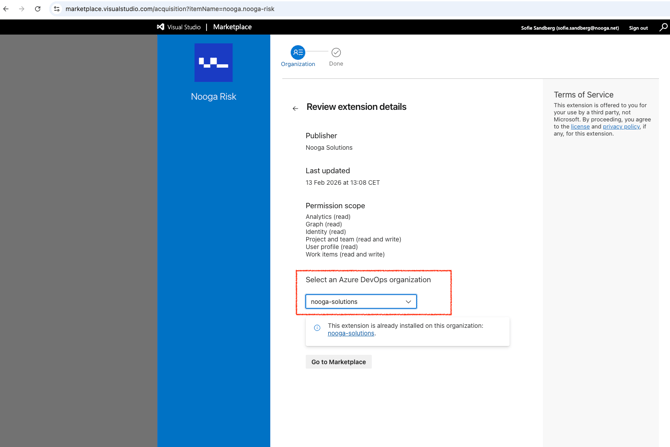
1. Navigate to Visual Studio Marketplace
2. Choose the right Azure DevOps organization and install the Nooga Risk Extension
Note: you need organization-level extension installation permissions
Start trial steps
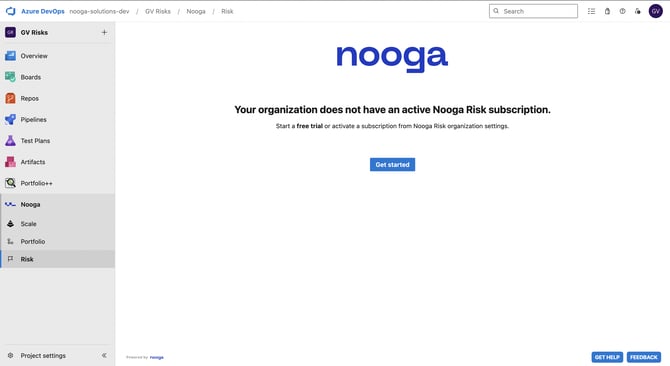
Once you install the Extension from Visual Studio Marketplace you need to start a trial subscription. All pages will display the activation prompt and guide you to the starting page.
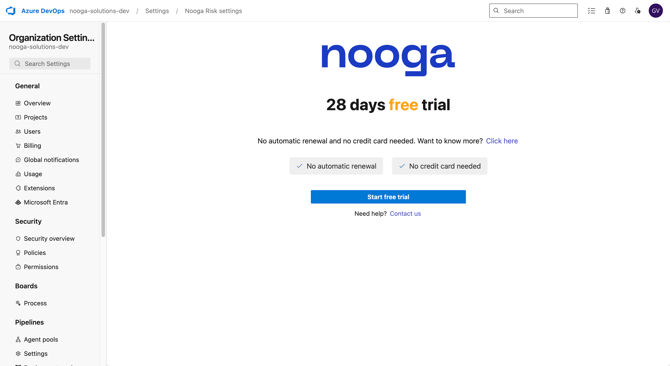
1. Follow the link or navigate to organizational settings: Nooga Risk Settings
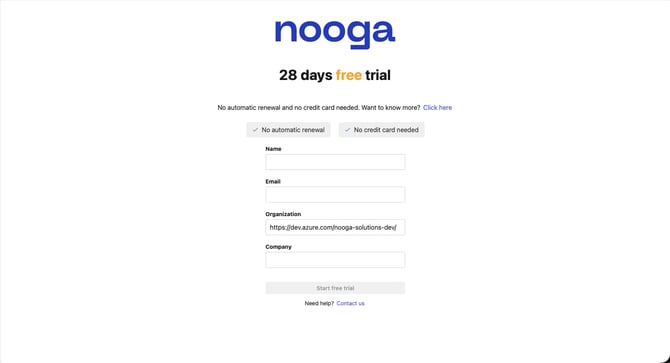
2. Fill in your details and start the free trial.
Once trial is started you can adjust settings such as language, risk matrix, categories and tolerance levels under Nooga Risk organizational settings. Navigate to Nooga Risk Settings page, for guidance, visit: Getting started with Nooga Risk
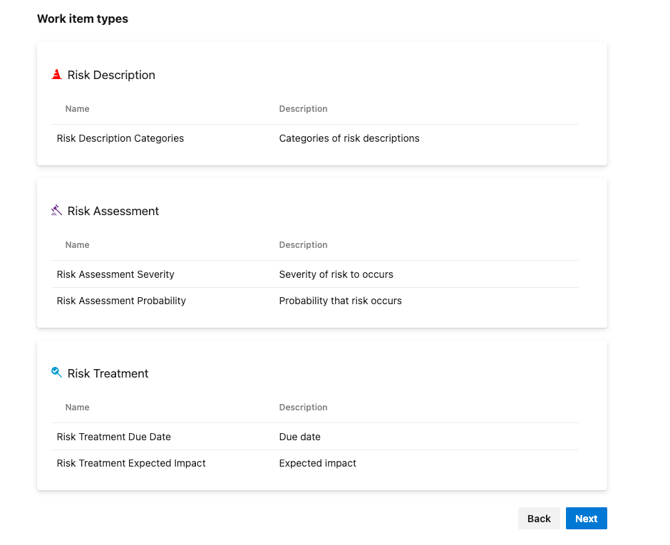
Once installed for the organization you need to configure it on a project. Please note this this often requires the right role in AzureDevOps due to the changes needed on a process template level, when adding new work items to a process template. Nooga Risk comes with three work items; Risk Description, Risk Assessment, Risk Treatment.
Navigate to the Nooga Risk hub icon in the project and follow the steps in the configuration:
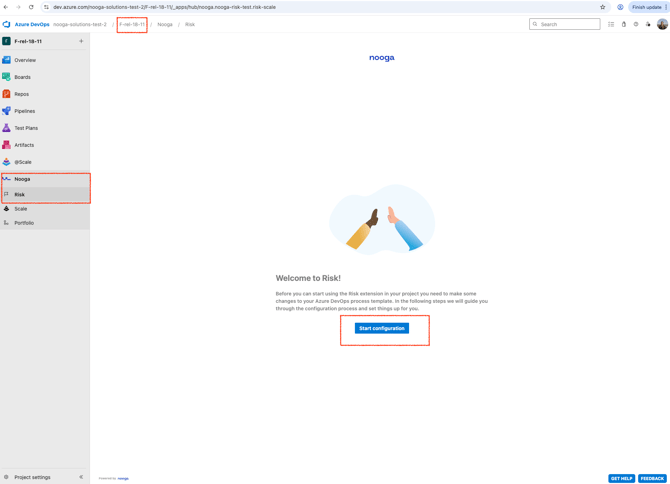 1. Choose standard configuration. Click Next
2. The page will display what work item types will be added to the process template. Click Next
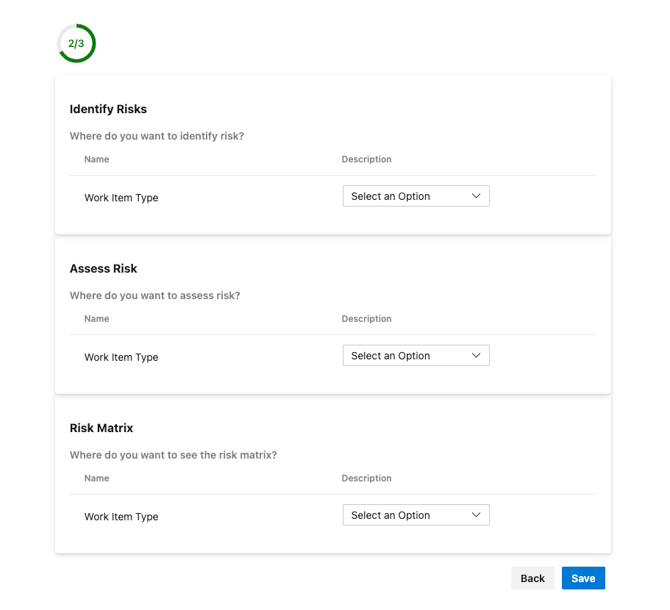
3. Choose on what work item types you want to display the three Nooga Risk tabs: Identify, Assess, Risk Matrix. Click Save
Note: if you want to add other work item types at a later stage you will need to reset the project configuration and go through the steps again.
Note: All users need to have a Nooga Risk role assigned to be able to view screens and use the tool. The subscription owner and Extension Administrator can assign users. See guidance