
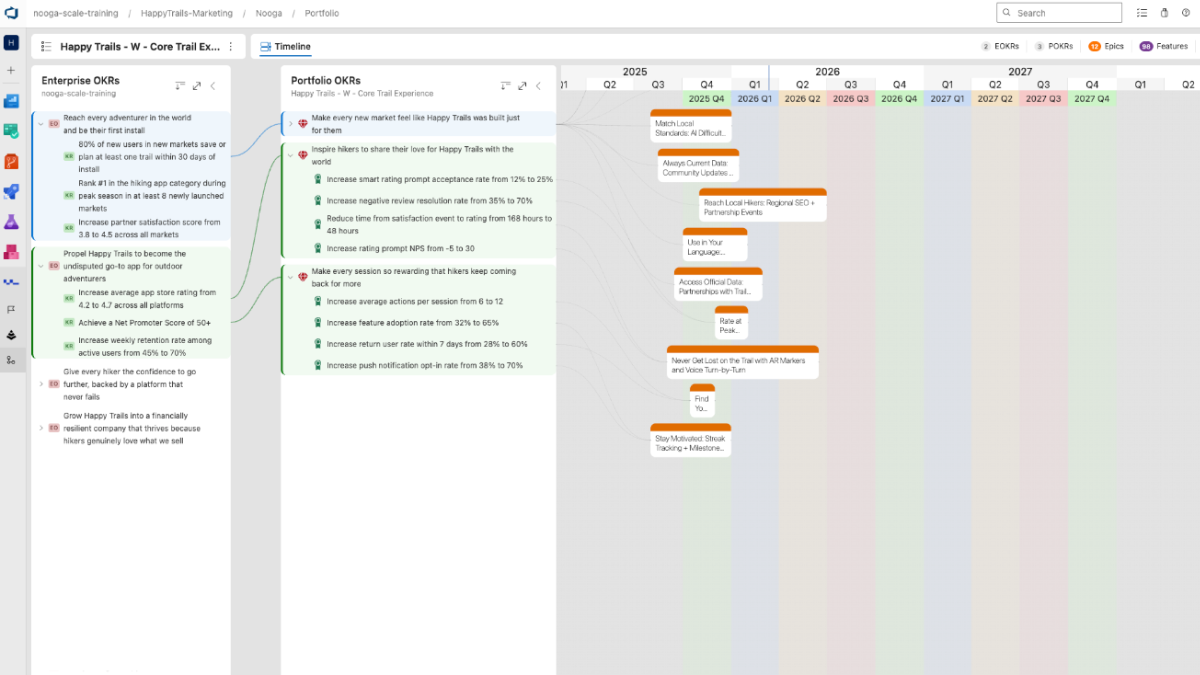
The timeline is the main view in Nooga Portfolio for holistic visibility. It shows your OKRs and Epics plotted across time.
Layout overview
| Element | What it shows |
|---|---|
| Left panel Enterprise OKRs | Organisation-level Strategic Objectives; clickable to highlight connected portfolio OKRs |
| Middle panel Portfolio OKRs | Portfolio-level Objectives and Key Results for the selected Portfolio |
| Right area Timeline | Epics plotted on a horizontal timeline by start and target date |
| Orange bars | Epics (large bodies of work) |
| Purple cards | Shown when zoomed in, Features (deliverables within an Epic) |
| Coloured columns (PI overlay) | Planning Intervals from Nooga Scale (e.g. 2026 Q1) if Nooga Scale is installed and integration is turned on under Portfolio settings. |
| ART groupings on Epic | if Nooga Scale is installed and integration is turned on under Portfolio settings the Feature that belongs to the Epic will be grouped under ARTs (called Workspace in Nooga Scale). |
Navigating the timeline
Zoom in/out: Use pinch zoom on the timeline. As you zoom in, the time scale shifts from years → quarters → months.
PI overlay columns: Coloured columns represent Planning Intervals from Nooga Scale. They remain labelled (e.g. 2026 Q2) even as you zoom useful for comparing portfolio plans with Scale team plans.
Click an Enterprise OKR: Highlights the connected Portfolio OKRs and Epics, letting you trace the full value chain from strategy to delivery.
Click an Epic: When zoomed in, shows Features, the ART responsible, and linked team data from Scale.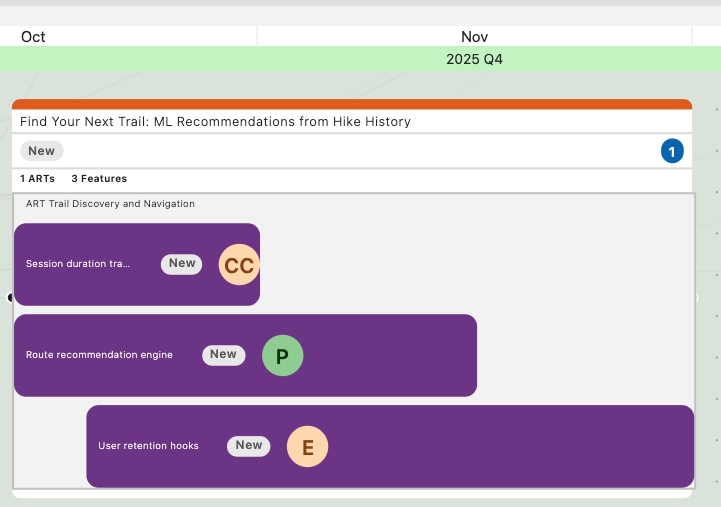
Note: Initially the OKR columns will appear empty. You must create Enterprise OKRs, Portfolio OKRs, and Epics and link them together before they populate the view. See the articles below.