
Introduction
The planning hub is where we define how teams work together to deliver value. We also associate the ART with the program increments (PI) they work on (see #1 in picture below). Program increments are defined using Azure DevOps iterations and ARTs can share PIs to align or have their own if they are on different cadences.
Setting up a new ART

- Use the New ART button (see #3 in the picture above).
- In the Create ART dialog you name the ART, assign the teams belonging to the ART and you can also associate the teams this ART depends on. The ART is stored as a work item in Azure DevOps which can be used to query for SAFe related information outside of Nooga Scale.
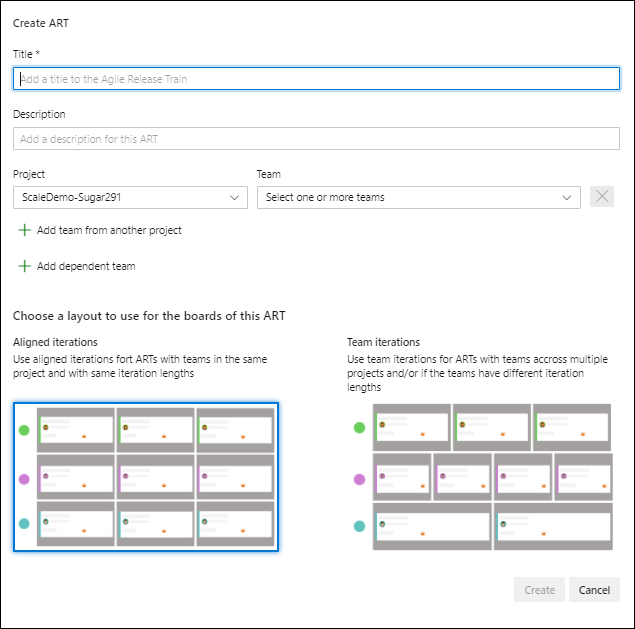
Note: If you're using the team iteration layout for cross-project ARTs, every team needs to setup team iterations in the same cadence. Nooga Scale will only add sprints if 1) using the aligned iterations and 2) the teams are in the same project.
Clicking the action menu (...) for an ART shows the available commands for the item.

| Command | Function |
|---|---|
| Add new PI to ART | Create a new PI and associate to the ART |
| Add existing PI to ART | Associate an existing PI to the ART |
| Edit ART | Edit the ART definition if you want to change the name or associated teams |
| Set ART team order | Configure the order of the teams for an ART |
| Delete ART | Delete the selected ART. The ART work item is deleted but can be restored like other work items from the Recycle bin |
In the New Program Increment dialog you define a program increment for the ART. The PI is implemented as a work item that has the iteration path set to the created PI iteration tree.
Aligned iterations
- Select the iteration you want the new PI to have as its root.
- Give it a name and description, the start date for the increment, sprint length (working days) and number of sprints.

Note: if a PI already exists for the selected parent iteration you will see a validation error. Choose a different name or use the Add existing program increment command if you intended to align to an existing PI.
Nooga Scale creates an iteration tree for you with the dates set based on the values in the ART creation dialog. You can later change dates or name of the iterations (like for Sprint 5 in the illustration) and Nooga Scale will show the values from the Azure DevOps definition.

Team iterations - When using the team iteration layout you select a start and finish date. Scale will then load all the iterations from each team within those dates and load them into the program board for the ART.
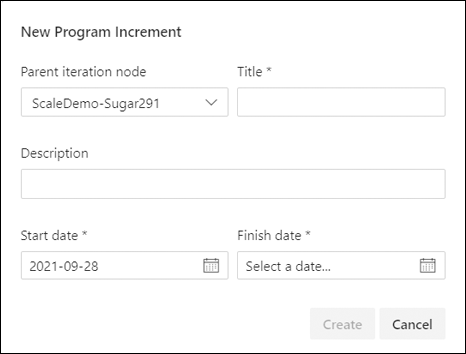
If you already have PIs created or create a new ART and want to align it to existing PIs then you use the "Add existing program increment" dialog. It works similar as the add new PI dialog with the difference that you can only set the description for the PI to be unique for the ART, the rest is controlled by the Azure DevOps iteration definition.

The Set ART team order lets you set the display order to list teams in the program board. Drag and drop to move the order in the dialog to what makes sense for you.

PI commands - Clicking the action menu (...) for a PI shows the available commands for the item.

| Command | Function |
|---|---|
| Delete PI | Delete the selected program increment. The PI work item is deleted but can be restored like other work items from the Recycle bin |
| Control | Function |
|---|---|
 |
Refresh content on page |
 |
Settings: Sprints |
 |
Enter or exit full screen mode |
The Sprints configuration allows you to set the default values for your project.
- Sprint length: number of work days per sprint.
- Number of sprints: number of sprints per program increment.
