
This FAQ addresses common questions about migrating from @Scale by Solidify to Nooga Scale. The migration ensures you continue receiving updates, new features, and full support for your SAFe planning tools.
Table of contents:
General Migration Questions
What is changing with Nooga Scale?
Nooga Scale is the next evolution of @Scale by Solidify. While the extension functionality remains the same, a new version is required for future updates and support.
Key points:
- @Scale by Solidify is being retired with no new features and only limited critical fixes
- Nooga Scale is the future with continuous updates, new features, and full support
- All your settings and ongoing work will remain unchanged during migration
- No additional information is required to complete the migration
Do we need downtime or restart requirements for Azure DevOps during the upgrade?
No, there are no downtime or restart requirements. Users can continue working during the migration process without interruption.
What is the risk of migration failure?
In the event of failure, the legacy @Scale by Solidify platform will remain accessible and available so you can continue your work.
What are the rollback activities if there's an issue?
Simply repeat the migration sequence if any issues occur.
Will there be changes to navigation, UI, or functionality?
The user experience after migration remains unchanged. Your team will find the same familiar interface and functionality they're accustomed to.
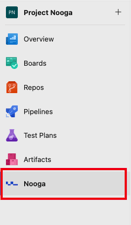
One notable change: The Nooga Scale icon has been relocated to the left-hand menu for easier access and now appears with the Nooga symbol and the name 'Nooga' as a new hub.
Migration Process
Who can perform the extension migration?
Only Project Collection Administrators and/or Subscription Owners can complete the extension migration (Step 1). This step must be performed once per Azure DevOps organization.
What are the migration steps?
Step 1: Extension Migration (Required, once per Azure DevOps organization)
- Install Nooga Scale from the Azure Marketplace
- Open Nooga Scale - you will automatically be prompted to migrate your @Scale settings
- Follow the migration wizard to complete the process (no input is needed)
Step 2: User-Level Migration (Optional, improves user experience)
- Each user can migrate their personal settings by opening the old @Scale by Solidify extension
- This step is optional - your organization and project-level settings remain intact even if users skip it
How many times do I need to complete the migration?
Migration must be completed once per Azure DevOps organization where the @Scale by Solidify extension is installed.
User Settings and Permissions
Can all users perform their personal migration regardless of their role?
Yes, all users can perform their personal migration regardless of their role (Read only, Contributor, Project Administrator).
Will user roles transfer automatically to Nooga Scale?
Yes, all roles will transfer automatically to Nooga Scale, so no manual reassignment is needed.
What personal settings can be migrated?
The user-level migration transfers:
- Favorite ARTs
- Selected PI
- Board options
- Filters applied in different hubs
- Selected dashboard in Analytics
- Configuration of flow distribution (e.g., Group by Work Item Type or Work Item Type & Value Area)
What happens after the organization migration is complete?
After the organization migration, the @Scale by Solidify extension remains installed, but the general Scale planning functionality becomes locked to prevent users from working across two different environments simultaneously. Instead of the usual product features, users will see a migration button that allows them to transfer their personal settings to Nooga Scale.
What happens if users don't complete their personal migration?
The legacy @Scale by Solidify extension won't be removed from Azure DevOps, so users will have ample time to migrate their settings. However, if you choose to uninstall the legacy extension before users have completed their personal migration, the migration button will no longer be available, and users will need to reconfigure their personal preferences manually in Nooga Scale.
Configuration and Settings
Will project-specific configurations transfer automatically?
Yes, all project-specific configurations will transfer automatically during the migration, so no manual reconfiguration is required.
Will our existing licenses transfer to Nooga Scale?
Yes, your existing licenses will automatically transfer to Nooga Scale. No action is needed on your part.
Removing the Legacy Extension
When is it safe to remove the @Scale by Solidify extension?
You can safely remove the @Scale by Solidify extension if:
- Your users have already completed their personal migration, OR
- Your users are comfortable reconfiguring their settings manually, AND
- You are already up and running with the Nooga Scale extension
What happens to work items if I uninstall @Scale by Solidify?
Any updates to your work items (additional fields) will remain on your work items when uninstalling @Scale by Solidify.
Important Reminders
- Complete the migration as soon as possible to avoid disruptions
- Customers with an active subscription will see in-product notifications guiding them through the migration
- Once the migration is completed for each organization, the @Scale by Solidify extension will no longer be available for use
- The Nooga Scale icon appears in the left-hand menu with the Nooga symbol
Need Help?
If you have an Enterprise subscription plan, contact your Customer Success Manager at Nooga Solutions for further assistance.
For additional support, visit our Migration Guide.