Note: Only Organization administrators can access organization settings.
Follow these steps to set up Nooga Risk to match your Risk taxonomy and framework/policies:
-
Navigate to Extension settings
- Set Risk Configurations
⚠️Remember to press "Save" every step of the way⚠️
Navigate to Extension settings
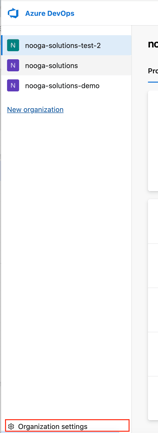
1. Click on "Organization settings" in the bottom left corner.
2. Navigate to Extensions and "Nooga Risk Settings" in the bottom left panel.
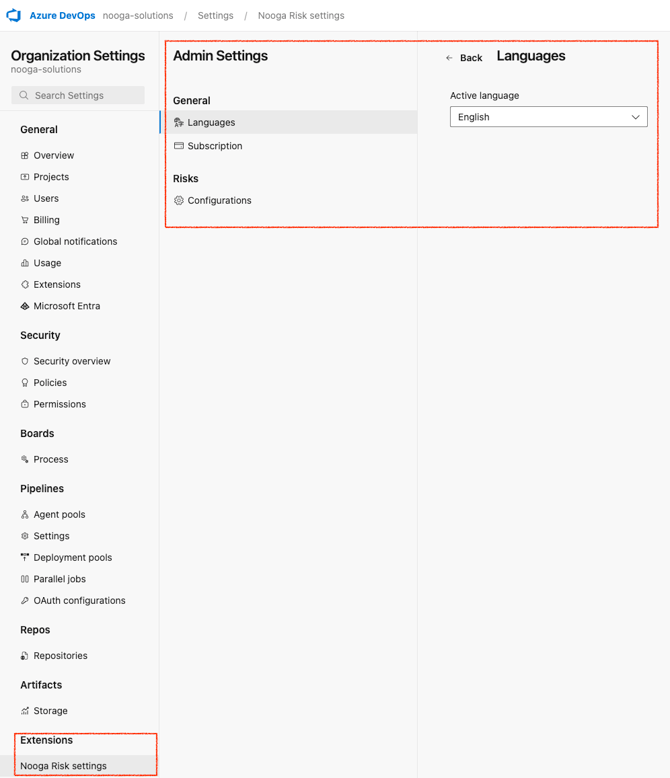
3. Choose settings:
-
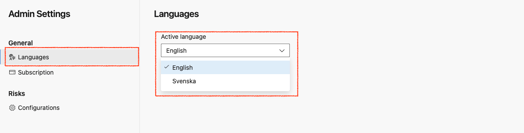
Language: Choose English (en) or Swedish (sv) in the drop down menu.
- Risk Configurations: these include 3 sections (listed below, see following paragraphs for further details):
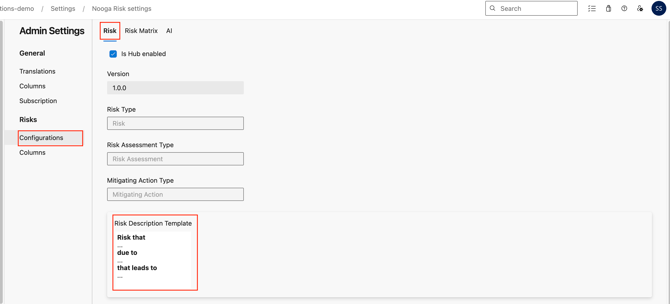
Risk description, categories and threshold levels
1. Type the description/help text in the "Risk Description Template" - this text will be shown on the Risk description work item.
2. Choose -
-
the name of your risk categories and
-
in what order they should show up in the drop down view
Click the "+Add option" to add additional categories or the tre dots in the specific row to edit the information.
-
Set threshold levels by adding a number. This is the total risk score that limits the acceptance of any risk within the category and necessitates escalating the risk to additional stakeholders for review before it can be approved. Escalation paths for risks in multiple categories are always defined by the lowest number.
- Add assignees for the escalation path by choosing one or several people per category.
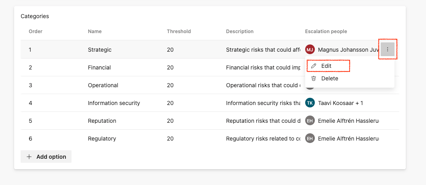
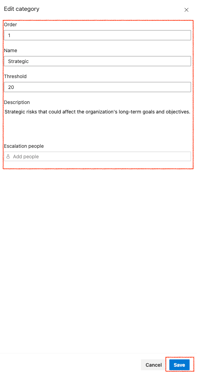
This guarantees that decisions involving higher risks are properly escalated and assessed by the appropriate stakeholders prior to finalization.
Risk Matrix and scales
Navigate to the "Risk Matrix" and -
-
Choose if you want to multiply or add the axis for calculation of the total risk score.
-
Add or delete rows or columns
-
Choose color of a square in the drop down
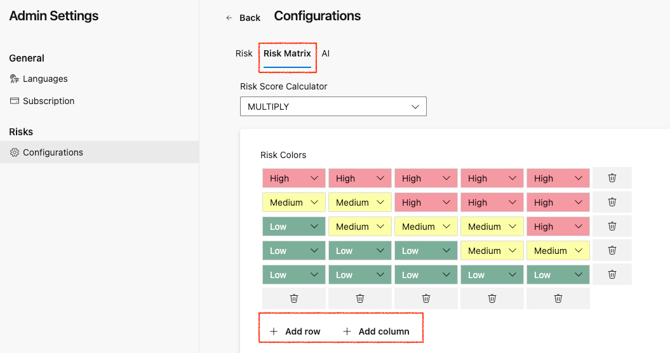
Configure one axis of the time by typing the name of the axis, add extra rows and update the information for each row by clicking the three dots on the right end of the row.
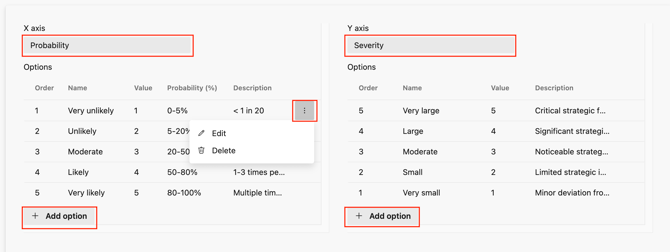
X axis - Probability/Likelihood, for each alternative update:
-
Name - how you define the level
-
Value - scoring (the basis of one parameter of the risk score)
-
Probability - % levels
-
Description - additional guidance of the level
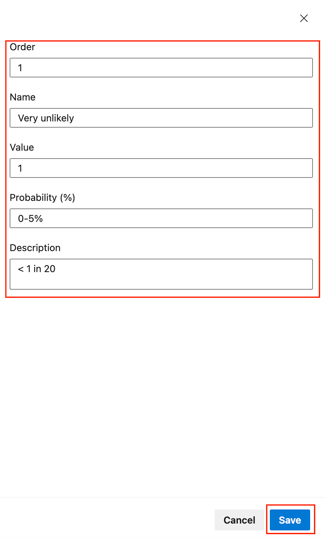
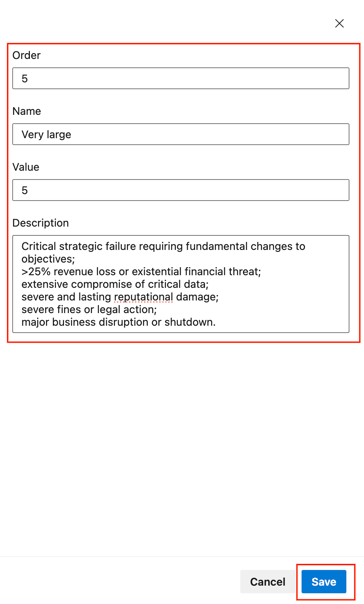
Y axis - Severity/Impact, for each alternative update:
-
Name - how you define the level
-
Value - scoring (the basis of one parameter of the risk score)
-
Description - additional guidance of the level
Risk levels, the name and colors shown in the Risk Matrix.
-
Choose name of the level
-
Click the drop down to adjust color
-
Add extra levels

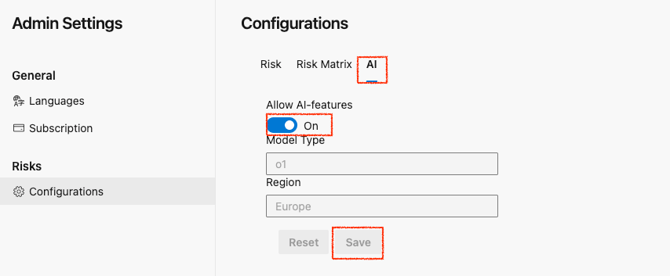
Enable or disable AI
Choose to enable or disable the AI feature. No data is saved in Nooga Risk. The AI feature is using Azure AI model and location/region is by default Europe.