
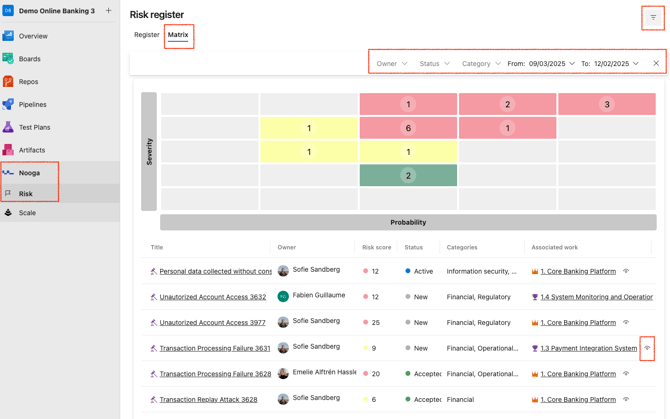
Firstly, open the Nooga Risk Extension and navigate to the "Matrix" tab.
- In the top-right corner, click the filter icon (pyramid-shaped).
- Apply filters based on your preferences:
- Owner
- Status
- Category
- Time Period
This allows you to narrow down the risk assessment items to the most relevant view for your current needs.
If you click the eye icon next to the "Associated work" the risk matrix will show only risks for that specific work item.
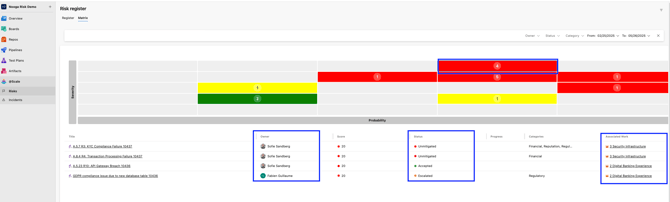
View all risk assessments within a risk score
You can click on any square in the Matrix to view a detailed overview of all risk assessments associated with that specific risk score. The overview includes key details such as the Owner, Status, and the linked work item for each risk assessment.
Understanding the Risk Register Tabs
The Nooga Risk extension includes two main tabs:
-
Register Tab
This tab contains all defined risks, including detailed descriptions. These risks are not yet assessed — they serve as your complete risk inventory. -
Matrix Tab
This tab displays all existing risk assessments. Each assessment ties a specific risk to a work item (such as an epic, feature, or user story).
Since a single risk can apply to multiple work items, you may see the same risk appear in several places — each with a different risk score, depending on the context and assessment for that specific item.
Tip: reduce the loading time by restricting the time period in the filtering options.