
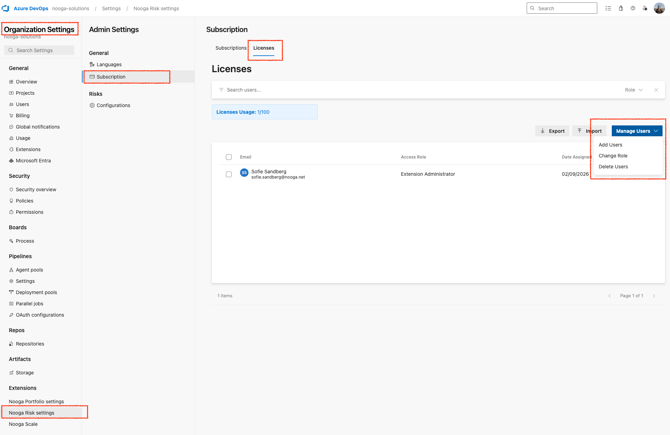
All Nooga Risk plans comes with a number of users. The total number of users for your active plan and the assigned users will be visible in the blue banner on top.
1. Navigate to Organization settings - Nooga Risk Settings - Subscriptions - Licences.
Click "Manage Users" and add new users.
It its also possible to change role by selecting the user in the list and choose "Change role".
Note: you need to be the Subscription Owner or Extension Administrator to assign users and roles.
Nooga Risk Roles and Permissions
-
Reader
Read-only access. This role cannot make any changes in the Nooga Risk tool, such as creating new risks or adding items.
-
Contributor
Can identify, assess and add new risks and treatments.
-
Project Administrator
Can change project settings for Nooga Risk, such as escalation paths and threshold levels.
-
Extension Administrator
Can assign users the different roles and change organization-level settings such as risk matrix, categories and escalation paths. However, this role cannot enable or disable AI features. This can only be done with the appropriate Azure DevOps permissions.
Note: The Subscription Owner has the same rights as an Extension Administrator
Important: If a user does not have access to a specific project in Azure DevOps, they will not be able to see the risks for that project in Nooga Risk, even if they have been assigned a role in Nooga Risk.
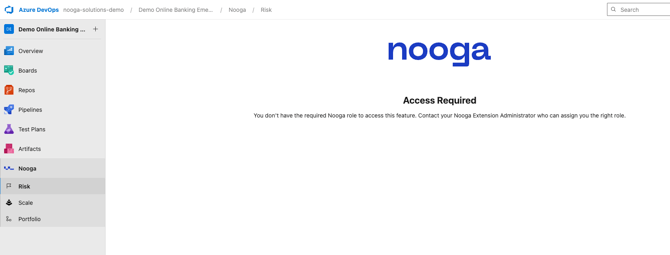
The below message will appear in all Nooga Risk screens for users who do not have an assigned role.
Instruction video of how to assign roles to users:
Video: add users and manage roles