
Portfolio OKRs represent the strategic goals and measurable outcomes for a specific portfolio. Like Enterprise OKRs, they are created directly in Azure DevOps using the Objective and Key Result work item types.
Creating an Portfolio OKR
1. Go to Boards → Work Items
In your Azure DevOps project, click Boards in the left navigation, then select Work Items.
2. Create a new Objective
Click New Work Item and select Objective as the work item type.
3. Set the OKR Level to 'Portfolio'
In the Objective work item form, under the Nooga group find the OKR Level field and set it to Portfolio.
Important: Without this, the item will not appear in the Portfolio OKR column.

4. Set the Area Path
Set the Area Path to one that corresponds to the portfolio you want this OKR to appear in. This is a common cause of items not showing up in the view.
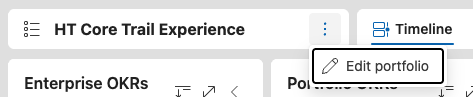
To find the correct Area Path, open the portfolio and click the three-dot menu ( ⋮ ),
then select Edit Portfolio.
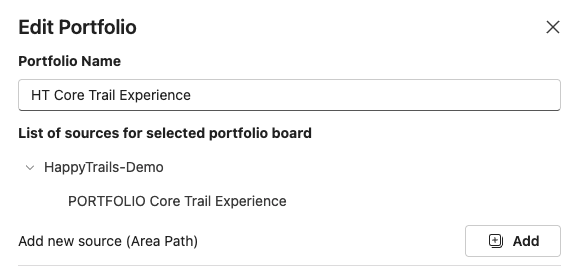
Under Portfolio Configuration, look for the List of sources for selected portfolio — this lists all Area Paths the portfolio is configured to load work items from.
5. Controlling visibility with State
Whether an Objective appears in the Portfolio OKR pane is determined by its State. Specifically, the State must map to the In Progress category (for example, state Active or Doing).
Objectives in the Proposed category (e.g. New) or Completed category (e.g. state Closed) will not appear, which lets you draft or close OKRs without them showing up in the view.
6. Add Key Results as child items
Open the Links tab. Click Add Link → New Item, set the link type to Child, and work item type to Key Result. Fill in the Key Result details and save.
Note: State and Area Path must be configured on Key Results using the same rules as for Objectives above.
Please check the following:
-
Area Path is correctly set on both Objectives and Key Results
-
State maps to a state in the "In Progress" state category (e.g. Active or Doing)
-
OKR Level is set to Portfolio
Note: Within a single OKR, the Objective-to-Key Result relationship is always Parent-Child. One Objective can have many Key Results, but each Key Result can only have one parent Objective.