To configure the extension, you need a process configuration permission in the Azure DevOps organization/collection or admin permission to create or manage an inherited process for the project.
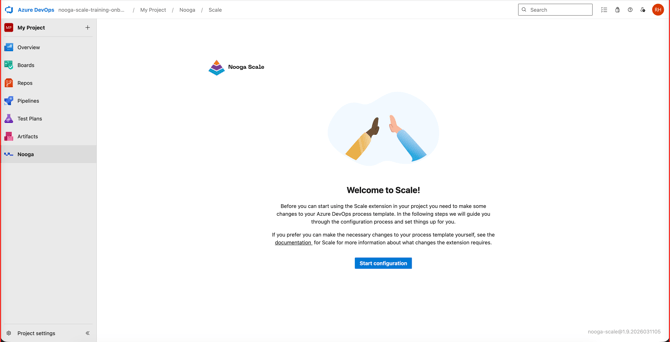
After the extension has been installed, you access Nooga Scale from the Menu in Azure DevOps.
Welcome to Nooga Scale
The first screen enables you to start the configuration wizard or to set your process to a valid process for the Nooga Scale extension. To start the Wizard click "Start Configuration Wizard" to continue.
Process configuration & Process Template Name
In this step, you select which process configuration to use for your project. Either select one of the standard configurations or upload your own customized process. Confirm or change the name of the process name. When you are happy with the process name, click next to continue.
.png?width=670&height=343&name=Screenshot%202026-03-13%20at%2011.45.21%20(1).png)
Configuration summary
Confirm that the following work item types will be added to your Azure DevOps process. The work item types added are Agile Release Train, Program Increment, PI Objective and Risk.
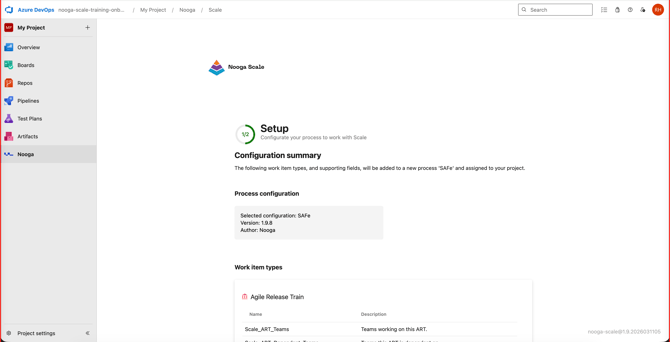
Click Save to trigger the configuration of Nooga Scale. After a few seconds, the Planning view will be shown, and you are ready to start using Nooga Scale.
.png?width=670&height=343&name=Screenshot%202026-03-13%20at%2011.45.59%20(1).png)
Customization
If you'd like some guidance for more customization on the process template, feel free to reach out to us at support.scale@nooga.net
Changing the Nooga Scale process through our user interface:
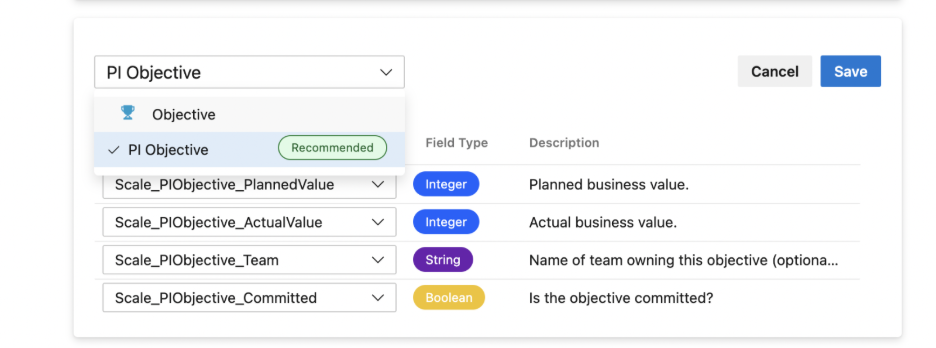
Example:
If you already have an Objective work item type in your Azure DevOps process template and would like to use that one instead of creating a new one with Scale. You can now edit in the config through the UI to use this work item type instead of being forced to use our custom work item type.